AudioCodes Mediant SBC for Sunrise SIP Trunk with Microsoft Skype for Business Server 2015 - Version 7.0 - Configuration Note
←
→
Page content transcription
If your browser does not render page correctly, please read the page content below
Configuration Note

AudioCodes Professional Services - Interoperability Lab

AudioCodes Mediant™ SBC for Sunrise SIP
Trunk with Microsoft® Skype for Business
Server 2015

Version 7.0
Configuration Note                                                                                                              Contents

                                               Table of Contents
1   Introduction ......................................................................................................... 7
    1.1    Intended Audience .................................................................................................7
    1.2    About AudioCodes SBC Product Series .................................................................7
2   Component Information...................................................................................... 9
    2.1    AudioCodes SBC Version.......................................................................................9
    2.2     Sunrise SIP Trunking Version ................................................................................9
    2.3    Microsoft Skype for Business Server 2015 Version ................................................9
    2.4    Interoperability Test Topology .............................................................................. 10
           2.4.1     Environment Setup ..................................................................................................11
           2.4.2     Known Limitations ....................................................................................................11
3   Configuring Skype for Business Server 2015 ................................................. 13
    3.1    Configuring the SBC as an IP / PSTN Gateway .................................................... 13
    3.2    Configuring the "Route" on Skype for Business Server 2015 ................................ 21
4   Configuring AudioCodes SBC ......................................................................... 33
    4.1    Step 1: IP Network Interfaces Configuration ......................................................... 34
           4.1.1     Step 1a: Configure VLANs.......................................................................................35
           4.1.2     Step 1b: Configure Network Interfaces....................................................................35
           4.1.3     Step 1c: Adding Static Routes to Sunrise SBC .......................................................37
    4.2    Step 2: Enable the SBC Application ..................................................................... 39
    4.3    Step 3: Configure Media Realms .......................................................................... 40
    4.4    Step 4: Configure SIP Signaling Interfaces ........................................................... 42
    4.5    Step 5: Configure Proxy Sets ............................................................................... 43
    4.6    Step 6: Configure IP Profiles ................................................................................ 48
    4.7    Step 7: Configure IP Groups................................................................................. 56
    4.8    Step 8: Configure Coders .....................................................................................58
    4.9    Step 9: SIP TLS Connection Configuration ........................................................... 60
           4.9.1     Step 9a: Configure the NTP Server Address...........................................................60
           4.9.2     Step 9b: Configure the TLS version ........................................................................61
           4.9.3     Step 9c: Configure a Certificate ...............................................................................61
    4.10   Step 10: Configure SRTP .....................................................................................64
    4.11   Step 11: Configure Maximum IP Media Channels ................................................ 65
    4.12   Step 12: Configure IP-to-IP Call Routing Rules .................................................... 65
    4.13   Step 13: Configure Message Manipulation Rules ................................................. 76
    4.14   Step 14: Miscellaneous Configuration................................................................... 81
           4.14.1 SBC General Settings..............................................................................................81
           4.14.2 Configure SBC Alternative Routing Reasons ..........................................................81
    4.15 Step 15: Reset the SBC .......................................................................................82
A   AudioCodes INI File .......................................................................................... 83
B   Configuring Analog Devices (ATAs) for Fax Support .................................... 93
    B.1    Step 1: Configure the Endpoint Phone Number Table .......................................... 93
    B.2    Step 2: Configure Tel to IP Routing Table ............................................................ 93
    B.3    Step 3: Configure Coders Table ........................................................................... 94
    B.4    Step 4: Configure SIP UDP Transport Type and Fax Signaling Method................ 95

Version 7.0                                                       3                                    AudioCodes Mediant SBC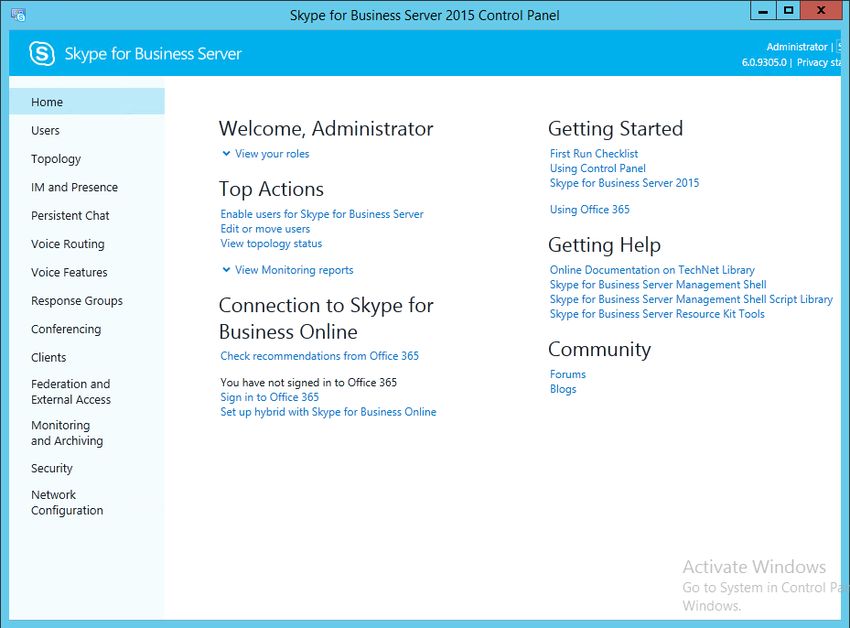
Microsoft Skype for Business 2015 & Sunrise SIP Trunk

                     This page is intentionally left blank.

Configuration Note                     4                       Document #: LTRT-12620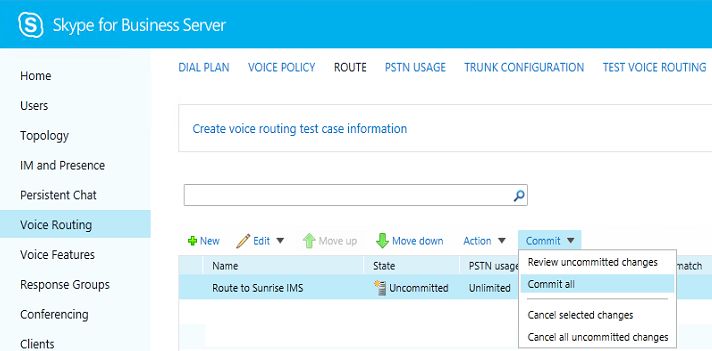
Configuration Note                                                                           Notices

                                              Notice
    This document describes how to connect the Microsoft Skype for Business Server 2015 and
    Sunrise SIP Trunk using AudioCodes Mediant SBC product series.
    Information contained in this document is believed to be accurate and reliable at the time of
    printing. However, due to ongoing product improvements and revisions, AudioCodes cannot
    guarantee accuracy of printed material after the Date Published, nor can it accept
    responsibility for errors or omissions. Updates to this document and other documents as well
    as      software      files    can     be     viewed     by     registered   customers     at
    http://www.audiocodes.com/downloads.
                       © Copyright 2016 AudioCodes Ltd. All rights reserved.
                            This document is subject to change without notice.
                                    Date Published: March-31-2016

Trademarks
           AudioCodes, AC, HD VoIP, HD VoIP Sounds Better, IPmedia, Mediant, MediaPack, What’s
           Inside Matters, OSN, SmartTAP, VMAS, VoIPerfect, VoIPerfectHD, Your Gateway To
           VoIP, 3GX, VocaNOM and CloudBond 365 are trademarks or registered trademarks of
           AudioCodes Limited All other products or trademarks are property of their respective
           owners. Product specifications are subject to change without notice.

WEEE EU Directive
           Pursuant to the WEEE EU Directive, electronic and electrical waste must not be disposed
           of with unsorted waste. Please contact your local recycling authority for disposal of this
           product.

Customer Support
           Customer technical support and services are provided by AudioCodes or by an authorized
           AudioCodes Service Partner. For more information on how to buy technical support for
           AudioCodes products and for contact information, please visit our Web site at
           www.audiocodes.com/support.

Document Revision Record

   LTRT                                               Description

   12620      Initial document release for Version 7.0.

Documentation Feedback
           AudioCodes continually strives to produce high quality documentation. If you have any
           comments (suggestions or errors) regarding this document, please fill out the
           Documentation Feedback form on our Web site at http://www.audiocodes.com/downloads.

Version 7.0                                       5                        AudioCodes Mediant SBC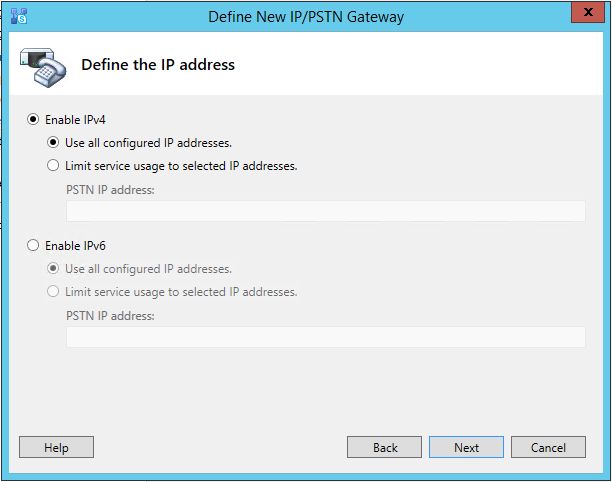
Microsoft Skype for Business 2015 & Sunrise SIP Trunk

                     This page is intentionally left blank.

Configuration Note                     6                       Document #: LTRT-12620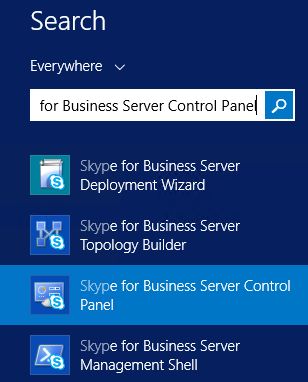
Configuration Note                                                                    1. Introduction

1         Introduction
          This Configuration Note describes how to set up AudioCodes Enterprise Session Border
          Controller (hereafter, referred to as SBC) for interworking between Sunrise's SIP Trunk
          and Microsoft's Skype for Business Server 2015 environment.
          You can also use AudioCodes' SBC Wizard tool to automatically configure the SBC based
          on this interoperability setup. However, it is recommended to read through this document in
          order to better understand the various configuration options. For more information on
          AudioCodes' SBC Wizard including download option, visit AudioCodes Web site at
          http://www.audiocodes.com/sbc-wizard (login required).

1.1       Intended Audience
          The document is intended for engineers, or AudioCodes and Sunrise Partners who are
          responsible for installing and configuring Sunrise's SIP Trunk and Microsoft's Skype for
          Business Server 2015 for enabling VoIP calls using AudioCodes SBC.

1.2       About AudioCodes SBC Product Series
          AudioCodes' family of SBC devices enables reliable connectivity and security between the
          Enterprise's and the service provider's VoIP networks.
          The SBC provides perimeter defense as a way of protecting Enterprises from malicious
          VoIP attacks; mediation for allowing the connection of any PBX and/or IP-PBX to any
          service provider; and Service Assurance for service quality and manageability.
          Designed as a cost-effective appliance, the SBC is based on field-proven VoIP and
          network services with a native host processor, allowing the creation of purpose-built
          multiservice appliances, providing smooth connectivity to cloud services, with integrated
          quality of service, SLA monitoring, security and manageability. The native implementation
          of SBC provides a host of additional capabilities that are not possible with standalone SBC
          appliances such as VoIP mediation, PSTN access survivability, and third-party value-
          added services applications. This enables Enterprises to utilize the advantages of
          converged networks and eliminate the need for standalone appliances.
          AudioCodes SBC is available as an integrated solution running on top of its field-proven
          Mediant Media Gateway and Multi-Service Business Router platforms, or as a
          software-only solution for deployment with third-party hardware.

Version 7.0                                      7                        AudioCodes Mediant SBC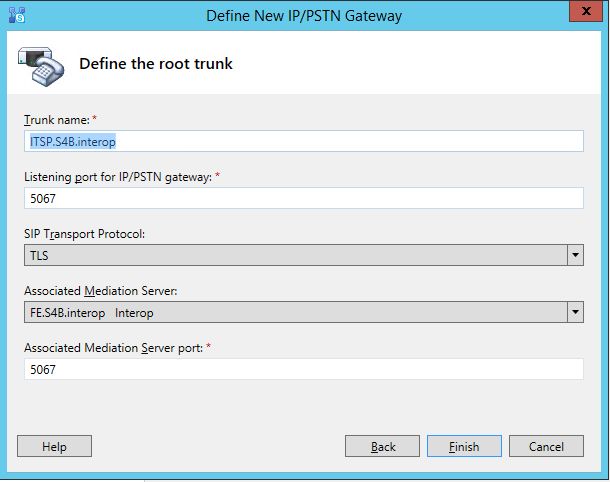
Microsoft Skype for Business 2015 & Sunrise SIP Trunk

                     This page is intentionally left blank.

Configuration Note                     8                       Document #: LTRT-12620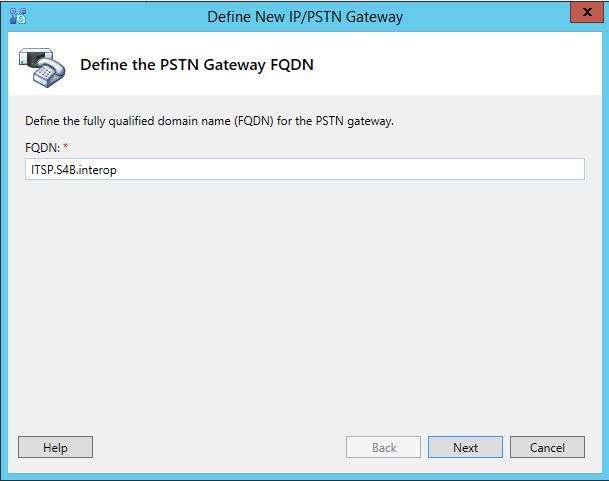
Configuration Note 2. Component Information
2 Component Information
2.1 AudioCodes SBC Version
Table 2-1: AudioCodes SBC Version
SBC Vendor AudioCodes
Models Mediant 500 E-SBC
Mediant 800 Gateway & E-SBC
Mediant 1000B Gateway & E-SBC
Mediant 3000 Gateway & SBC
Mediant 2600 E-SBC
Mediant 4000 SBC
Software Version SIP_7.00A.058.002
Protocol SIP/UDP (to the Sunrise SIP Trunk)
SIP/TCP or TLS (to the S4B FE Server)
Additional Notes None
2.2 Sunrise SIP Trunking Version
Table 2-2: Sunrise Version
Vendor/Service Provider Sunrise
SSW Model/Service IMS SIP Trunk
Software Version IMS 10.2
CSCF - V100R010C20SPC100,
patch CSCF_V100R010C20SPH101
SBC - V300R001C20SPC100,
patch SE2900_V300R001C20SPH109
Protocol SIP
Additional Notes None
2.3 Microsoft Skype for Business Server 2015 Version
Table 2-3: Microsoft Skype for Business Server 2015 Version
Vendor Microsoft
Model Skype for Business
Software Version Release 2015 6.0.9319.0, CU December 2015 or higher
Protocol SIP
Additional Notes None
Version 7.0 9 AudioCodes Mediant SBCMicrosoft Skype for Business 2015 & Sunrise SIP Trunk
2.4 Interoperability Test Topology
The interoperability testing between AudioCodes SBC and Sunrise SIP Trunk with Skype
for Business 2015 was done using the following topology setup:
Enterprise deployed with Microsoft Skype for Business Server 2015 in its private
network for enhanced communication within the Enterprise.
Enterprise wishes to offer its employees enterprise-voice capabilities and to connect
the Enterprise to the PSTN network using Sunrise's SIP Trunking service.
AudioCodes SBC is implemented to interconnect between the Enterprise LAN and the
SIP Trunk.
• Session: Real-time voice session using the IP-based Session Initiation Protocol
(SIP).
• Border: IP-to-IP network border between Skype for Business Server 2015
network in the Enterprise LAN and Sunrise's SIP Trunk located in the public
network.
The figure below illustrates this interoperability test topology:
Figure 2-1: Interoperability Test Topology between SBC and Microsoft Skype for Business with
Sunrise SIP Trunk
IMS SIP Trunk
DMZ PSTN
MPLS Router
Firewall
Client
LAN
Internet
Firewall
Client Edge Server
AD Server FE Servers
Configuration Note 10 Document #: LTRT-12620Configuration Note 2. Component Information
2.4.1 Environment Setup
The interoperability test topology includes the following environment setup:
Table 2-4: Environment Setup
Area Setup
Network Microsoft Skype for Business Server 2015 environment is
located on the Enterprise's LAN
Sunrise SIP Trunk is located on the WAN
Signaling Microsoft Skype for Business Server 2015 operates with SIP-
Transcoding over-TLS transport type
Sunrise SIP Trunk operates with SIP-over-UDP transport type
Codecs Microsoft Skype for Business Server 2015 supports G.711A-law
Transcoding and G.711U-law coders
Microsoft Skype for Business Clients (Media Bypass) supports
G.722, G.711A-law and G.711U-law coders
Sunrise SIP Trunk supports G.722, G729, G.711A-law and
G.711U-law coders
Media Transcoding Microsoft Skype for Business Server 2015 operates with SRTP
media type
Sunrise SIP Trunk operates with RTP media type
2.4.2 Known Limitations
There were no limitations observed in the interoperability tests done for the AudioCodes
SBC interworking between Microsoft Skype for Business Server 2015 and Sunrise 's SIP
Trunk.
Version 7.0 11 AudioCodes Mediant SBCMicrosoft Skype for Business 2015 & Sunrise SIP Trunk
This page is intentionally left blank.
Configuration Note 12 Document #: LTRT-12620Configuration Note 3. Configuring Skype for Business Server 2015
3 Configuring Skype for Business Server
2015
This chapter describes how to configure Microsoft Skype for Business Server 2015 to
operate with AudioCodes SBC.
Note: Dial plans, voice policies, and PSTN usages are also necessary for Enterprise
voice deployment; however, they are beyond the scope of this document.
3.1 Configuring the SBC as an IP / PSTN Gateway
The procedure below describes how to configure the SBC as an IP / PSTN Gateway.
To configure SBC as IP/PSTN Gateway and associate it with Mediation Server:
1. On the server where the Topology Builder is installed, start the Skype for Business
Server 2015 Topology Builder (Windows Start menu > search for Skype for
Business Server Topology Builder), as shown below:
Figure 3-1: Starting the Skype for Business Server Topology Builder
Version 7.0 13 AudioCodes Mediant SBCMicrosoft Skype for Business 2015 & Sunrise SIP Trunk
The following is displayed:
Figure 3-2: Topology Builder Dialog Box
2. Select the Download Topology from existing deployment option, and then click
OK; you are prompted to save the downloaded Topology:
Figure 3-3: Save Topology Dialog Box
3. Enter a name for the Topology file, and then click Save. This step enables you to roll
back from any changes you make during the installation.
Configuration Note 14 Document #: LTRT-12620Configuration Note 3. Configuring Skype for Business Server 2015
4. The Topology Builder screen with the downloaded Topology is displayed:
Figure 3-4: Downloaded Topology
5. Under the Shared Components node, right-click the PSTN gateways node, and then
from the shortcut menu, choose New IP/PSTN Gateway, as shown below:
Figure 3-5: Choosing New IP/PSTN Gateway
Version 7.0 15 AudioCodes Mediant SBCMicrosoft Skype for Business 2015 & Sunrise SIP Trunk
6. The following is displayed:
Figure 3-6: Define the PSTN Gateway FQDN
7. Enter the Fully Qualified Domain Name (FQDN) of the SBC (e.g., ITSP.S4B.interop).
This FQDN should be equivalent to the configured Subject Name (CN) in the TLS
Certificate Context (see Section 4.9.3 on page 61).
8. Click Next; the following is displayed:
Figure 3-7: Define the IP Address
9. Define the listening mode (IPv4 or IPv6) of the IP address of your new PSTN gateway,
and then click Next.
10. Define a root trunk for the PSTN gateway. A trunk is a logical connection between the
Mediation Server and a gateway uniquely identified by the following combination:
Mediation Server FQDN, Mediation Server listening port (TLS or TCP), gateway IP
Configuration Note 16 Document #: LTRT-12620Configuration Note 3. Configuring Skype for Business Server 2015
and FQDN, and gateway listening port.
Notes:
• When defining a PSTN gateway in Topology Builder, you must define a root
trunk to successfully add the PSTN gateway to your topology.
• The root trunk cannot be removed until the associated PSTN gateway is
removed.
Figure 3-8: Define the Root Trunk
a. In the 'Listening Port for IP/PSTN Gateway' field, enter the listening port that the
SBC will use for SIP messages from the Mediation Server that will be associated
with the root trunk of the PSTN gateway (e.g., 5067). This parameter is later
configured in the SIP Interface table (see Section 0 on page 42).
b. In the 'SIP Transport Protocol' field, select the transport type (e.g., TLS) that the
trunk uses. This parameter is later configured in the SIP Interface table (see
Section 0 on page 42).
c. In the 'Associated Mediation Server' field, select the Mediation Server pool to
associate with the root trunk of this PSTN gateway.
d. In the 'Associated Mediation Server Port' field, enter the listening port that the
Mediation Server will use for SIP messages from the SBC (e.g., 5067).
e. Click Finish.
The SBC is added as a PSTN gateway, and a trunk is created as shown below:
Version 7.0 17 AudioCodes Mediant SBCMicrosoft Skype for Business 2015 & Sunrise SIP Trunk
Figure 3-9: SBC added as IP/PSTN Gateway and Trunk Created
11. Publish the Topology: In the main tree, select the root node Skype for Business
Server, and then from the Action menu, choose Publish Topology, as shown below:
Figure 3-10: Choosing Publish Topology
Configuration Note 18 Document #: LTRT-12620Configuration Note 3. Configuring Skype for Business Server 2015
The following is displayed:
Figure 3-11: Publish the Topology
12. Click Next; the Topology Builder starts to publish your topology, as shown below:
Figure 3-12: Publishing in Progress
Version 7.0 19 AudioCodes Mediant SBCMicrosoft Skype for Business 2015 & Sunrise SIP Trunk
13. Wait until the publishing topology process completes successfully, as shown below:
Figure 3-13: Publishing Wizard Complete
14. Click Finish.
Configuration Note 20 Document #: LTRT-12620Configuration Note 3. Configuring Skype for Business Server 2015
3.2 Configuring the "Route" on Skype for Business
Server 2015
The procedure below describes how to configure a "Route" on the Skype for Business
Server 2015 and to associate it with the SBC PSTN gateway.
To configure the "route" on Skype for Business Server 2015:
1. Start the Microsoft Skype for Business Server 2015 Control Panel (Start > search for
Microsoft Skype for Business Server Control Panel), as shown below:
Figure 3-14: Opening the Skype for Business Server Control Panel
2. You are prompted to enter your login credentials:
Version 7.0 21 AudioCodes Mediant SBCMicrosoft Skype for Business 2015 & Sunrise SIP Trunk
Figure 3-15: Skype for Business Server Credentials
3. Enter your domain username and password, and then click OK; the Microsoft Skype
for Business Server 2015 Control Panel is displayed:
Figure 3-16: Microsoft Skype for Business Server 2015 Control Panel
4. To enable Media bypass, select Network Configuration in the left navigation pane.
Configuration Note 22 Document #: LTRT-12620Configuration Note 3. Configuring Skype for Business Server 2015
Figure 3-17: Network Configuration Page
5. Select Global and click to Edit. The Edit Global Settings page appears:
Figure 3-18: Global Settings Page
6. Activate Enable Media bypass and click to Commit.
7. In the left navigation pane, select Voice Routing.
8. In the left navigation pane, select Voice Routing.
Version 7.0 23 AudioCodes Mediant SBCMicrosoft Skype for Business 2015 & Sunrise SIP Trunk
Figure 3-19: Voice Routing Page
9. In the Voice Routing page, select the Route tab.
Figure 3-20: Route Tab
Configuration Note 24 Document #: LTRT-12620Configuration Note 3. Configuring Skype for Business Server 2015
10. Click New; the New Voice Route page appears:
Figure 3-21: Adding New Voice Route
11. In the 'Name' field, enter a name for this route (e.g., ITSP).
12. In the 'Starting digits for numbers that you want to allow' field, enter the starting digits
you want this route to handle (e.g., * to match all numbers), and then click Add.
13. Associate the route with the SBC Trunk that you created:
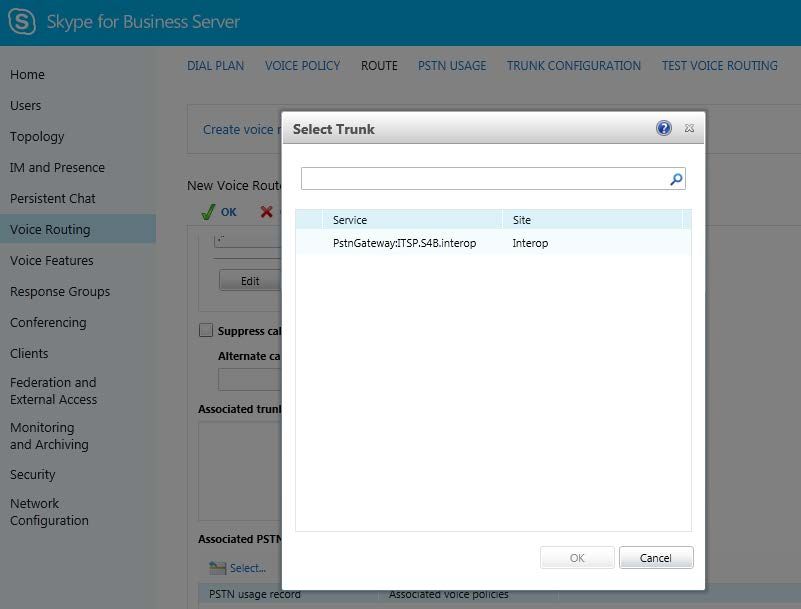
a. Under the 'Associated Trunks' group, click Add; a list of all the deployed
gateways is displayed:
Figure 3-22: List of Deployed Trunks
Version 7.0 25 AudioCodes Mediant SBCMicrosoft Skype for Business 2015 & Sunrise SIP Trunk
b. Select the SBC Trunk you created, and then click OK; the trunk is added to the
'Associated Trunks' group list:
Figure 3-23: Selected SBC Trunk
14. Associate a PSTN Usage to this route:
a. Under the 'Associated PSTN Usages' group, click Select and then add the
associated PSTN Usage.
Figure 3-24: Associating PSTN Usage to Route
Configuration Note 26 Document #: LTRT-12620Configuration Note 3. Configuring Skype for Business Server 2015
15. Click OK (located on the top of the New Voice Route page); the New Voice Route
(Uncommitted) is displayed:
Figure 3-25: Confirmation of New Voice Route
16. From the Commit drop-down list, choose Commit all, as shown below:
Figure 3-26: Committing Voice Routes
Version 7.0 27 AudioCodes Mediant SBCMicrosoft Skype for Business 2015 & Sunrise SIP Trunk
The Uncommitted Voice Configuration Settings page appears:
Figure 3-27: Uncommitted Voice Configuration Settings
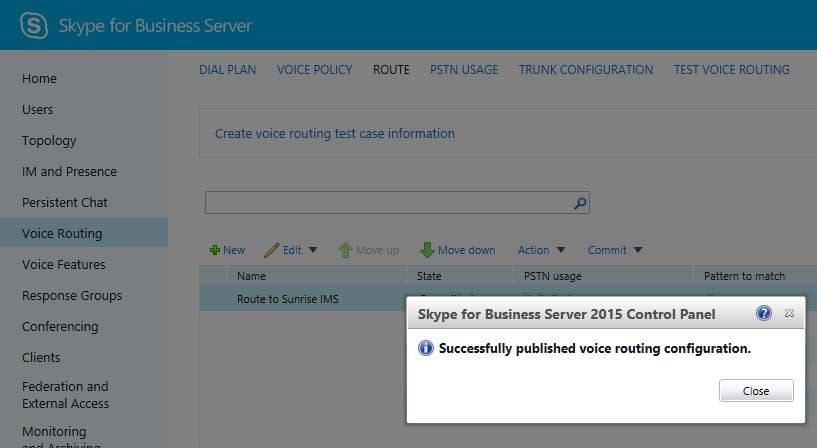
17. Click Commit; a message is displayed confirming a successful voice routing
configuration, as shown below:
Figure 3-28: Confirmation of Successful Voice Routing Configuration
Configuration Note 28 Document #: LTRT-12620Configuration Note 3. Configuring Skype for Business Server 2015
18. Click Close; the new committed Route is displayed in the Voice Routing page, as
shown below:
Figure 3-29: Voice Routing Screen Displaying Committed Routes
19. For ITSPs that implement a call identifier, continue with the following steps:
Note: The SIP History-Info header provides a method to verify the identity (ID) of the call
forwarder (i.e., the Skype for Business user number). This ID is required by Sunrise SIP
Trunk in the SIP diversion header. The device adds this ID to the diversion header in the
sent INVITE message using the IP Profile (see Section 4.6 on page 48).
a. In the Voice Routing page, select the Trunk Configuration tab. Note that you
can add and modify trunk configuration by site or by pool.
Figure 3-30: Voice Routing Screen – Trunk Configuration Tab
b. Click Edit; the Edit Trunk Configuration page appears:
Version 7.0 29 AudioCodes Mediant SBCMicrosoft Skype for Business 2015 & Sunrise SIP Trunk
c. Select the Enable forward call history check box, and then click OK.
d. Repeat Steps 11 through 13 to commit your settings.
e. Verify de-activation of RTCP, activation of Session timers and Media Bypass and
deactivation of Refer support. Since some of these parameters are not visible on
the graphical interface, the Skype for Business server Management Shell must be
used. Use the following command on the Skype for Business server Management
Shell:
Set-CsTrunkConfiguration -Identity Global -EnableBypass
$true -EnableReferSupport $false -RTCPActiveCalls $false -
RTCPCallsOnHold $false -EnableSessionTimer $true
f. To verify the configuration, use the following cmdlet:
Get-CsTrunkConfiguration
Identity : Global
OutboundTranslationRulesList : {}
SipResponseCodeTranslationRulesList : {}
OutboundCallingNumberTranslationRulesList : {}
PstnUsages : {}
Description :
ConcentratedTopology : True
EnableBypass : True
EnableMobileTrunkSupport : False
EnableReferSupport : False
EnableSessionTimer : True
EnableSignalBoost : False
MaxEarlyDialogs : 20
Configuration Note 30 Document #: LTRT-12620Configuration Note 3. Configuring Skype for Business Server 2015
RemovePlusFromUri : False
RTCPActiveCalls : False
RTCPCallsOnHold : False
SRTPMode : Required
EnablePIDFLOSupport : False
EnableRTPLatching : False
EnableOnlineVoice : False
ForwardCallHistory : True
Enable3pccRefer : False
ForwardPAI : False
EnableFastFailoverTimer : True
EnableLocationRestriction : False
NetworkSiteID :
Version 7.0 31 AudioCodes Mediant SBCMicrosoft Skype for Business 2015 & Sunrise SIP Trunk
This page is intentionally left blank.
Configuration Note 32 Document #: LTRT-12620Configuration Note 4. Configuring AudioCodes SBC
4 Configuring AudioCodes SBC
This chapter provides step-by-step procedures on how to configure AudioCodes SBC for
interworking between Microsoft Skype for Business Server 2015 and the Sunrise SIP
Trunk. These configuration procedures are based on the interoperability test topology
described in Section 2.4 on page 10, and includes the following main areas:
SBC WAN interface - Sunrise SIP Trunking environment
SBC LAN interface - Skype for Business Server 2015 environment
This configuration is done using the SBC's embedded Web server (hereafter, referred to as
Web interface).
Notes:
• For implementing Microsoft Skype for Business and Sunrise SIP Trunk based on the
configuration described in this section, AudioCodes SBC must be installed with a
Software License Key that includes the following software features:
√ Microsoft
√ SBC
√ Security
√ DSP
√ RTP
√ SIP
For more information about the Software License Key, contact your AudioCodes
sales representative.
• The scope of this interoperability test and document does not cover all security
aspects for connecting the SIP Trunk to the Microsoft Skype for Business
environment. Comprehensive security measures should be implemented per your
organization's security policies. For security recommendations on AudioCodes’
products, refer to the Recommended Security Guidelines document.
• Before you begin configuring the SBC, ensure that the SBC's Web interface
Navigation tree is in Advanced-menu display mode. To do this, select the Advanced
option, as shown below:
Note that when the SBC is reset, the Navigation tree reverts to Basic-
menu display.
Version 7.0 33 AudioCodes Mediant SBCMicrosoft Skype for Business 2015 & Sunrise SIP Trunk
4.1 Step 1: IP Network Interfaces Configuration
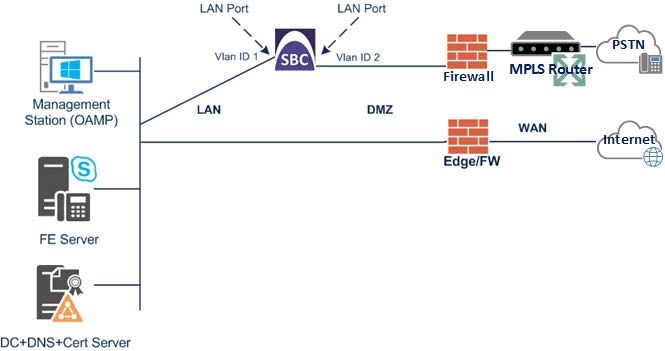
This step describes how to configure the SBC's IP network interfaces. There are several
ways to deploy the SBC; however, this interoperability test topology employs the following
deployment method:
SBC interfaces with the following IP entities:
• Skype for Business servers, located on the LAN
• Sunrise SIP Trunk, located on the WAN
SBC connects to the WAN through a DMZ network
Physical connection: The type of physical connection to the LAN depends on the
method used to connect to the Enterprise's network. In the interoperability test
topology, SBC connects to the LAN and WAN using dedicated LAN ports
(i.e., two ports and two network cables are used).
SBC also uses two logical network interfaces:
• LAN (VLAN ID 1)
• WAN (VLAN ID 2)
Figure 4-1: Network Interfaces in Interoperability Test Topology
Configuration Note 34 Document #: LTRT-12620Configuration Note 4. Configuring AudioCodes SBC
4.1.1 Step 1a: Configure VLANs
To configure the VLANs:
1. Open the Ethernet Device Table page (Configuration tab > VoIP menu > Network >
Ethernet Device Table).
2. There will be one existing row for VLAN ID 1 and underlying interface GROUP_1.
3. Add another VLAN ID 2 for the WAN side as follows:
Parameter Value
Index 1
VLAN ID 2
Underlying Interface GROUP_2 (Ethernet port group)
Name vlan 2
Tagging Untagged
Figure 4-2: Configured VLAN IDs in Ethernet Device Table
4.1.2 Step 1b: Configure Network Interfaces
This step describes how to configure the IP network interfaces for each of the following
interfaces:
LAN VoIP (assigned the name "SfB")
WAN VoIP (assigned the name "Sunrise")
To configure the IP network interfaces:
1. Open the IP Interfaces Table page (Configuration tab > VoIP menu > Network > IP
Interfaces Table).
2. Modify the existing LAN network interface:
a. Select the line with 'Index' 0 of the OAMP + Media + Control table row, and then
click Edit.
b. Configure the interface as follows:
Parameter Value
IP Address 10.145.205.12 (IP address of SBC)
Version 7.0 35 AudioCodes Mediant SBCMicrosoft Skype for Business 2015 & Sunrise SIP Trunk
Parameter Value
Prefix Length 24 (subnet mask in bits for 255.255.0.0)
Default Gateway 10.145.205.1
Interface Name SfB (arbitrary descriptive name)
Primary DNS Server IP Address 10.145.205.51
Secondary DNS Server IP Address 10.145.205.52
Underlying Device vlan 1
a. Click Save.
3. Add a network interface for the WAN side:
b. Click Add.
c. Configure the interface as follows:
Parameter Value
Application Type Media + Control
IP Address 192.168.201.30 (WAN IP address)
Prefix Length 24 (for 255.255.255.128)
Default Gateway 0.0.0.0
Interface Name Sunrise
Primary DNS Server IP Address 0.0.0.0
Secondary DNS Server IP Address 0.0.0.0
Underlying Device vlan 2
a. Click Add.
The configured IP network interfaces are shown below:
Figure 4-3: Configured Network Interfaces in IP Interfaces Table
Configuration Note 36 Document #: LTRT-12620Configuration Note 4. Configuring AudioCodes SBC
4.1.3 Step 1c: Adding Static Routes to Sunrise SBC
This step describes how to configure the following static IP routes to sunrise SBCs:
192.168.200.0/24 IMS Next Hop
10.17.220.0/28 IMS Zürich SIP
10.17.220.16/28 IMS Zürich Media
10.24.220.0/28 IMS Bern SIP
10.24.220.16/28 IMS Bern Media
To configure the IP network interfaces:
1. Open the Static Route Table page (Configuration tab > VoIP menu > Network >
Static Route Table).
a. Click Add.
b. Configure the static route as follows:
Parameter Value
Index 0
Device Name vlan 2
Destination 192.168.200.0
Prefix length 24
Gateway 192.168.201.20 (Firewall internal IP address)
Description IMS Next Hop
c. Click to Add.
2. Add the static route to IMS Zürich for SIP.
a. Click Add.
b. Configure the static route as follows:
Parameter Value
Index 1
Device Name vlan 2
Destination 10.17.220.0
Prefix length 28
Gateway 192.168.201.20 (Firewall internal IP address)
Description IMS ZUR SIP
c. Click to Add.
Version 7.0 37 AudioCodes Mediant SBCMicrosoft Skype for Business 2015 & Sunrise SIP Trunk
3. Add the static route to IMS Zürich for Media.
a. Click Add.
b. Configure the static route as follows:
Parameter Value
Index 2
Device Name vlan 2
Destination 10.17.220.16
Prefix length 28
Gateway 192.168.201.20 (Firewall internal IP address)
Description IMS ZUR Media
c. Click to Add.
4. Add the static route to IMS Bern for SIP.
a. Click Add.
b. Configure the static route as follows:
Parameter Value
Index 3
Device Name vlan 2
Destination 10.24.220.0
Prefix length 28
Gateway 192.168.201.20 (Firewall internal IP address)
Description IMS BER SIP
c. Click to Add.
5. Add the static route to IMS Bern for Media.
a. Click Add.
b. Configure the static route as follows:
Parameter Value
Index 4
Device Name vlan 2
Destination 10.24.220.0
Prefix length 28
Gateway 192.168.201.20 (Firewall internal IP address)
Description IMS BER Media
c. Click to Add.
Configuration Note 38 Document #: LTRT-12620Configuration Note 4. Configuring AudioCodes SBC
The configured static IP routes are shown below:
Figure 4-4: Configured Network Interfaces in IP Interfaces Table
4.2 Step 2: Enable the SBC Application
This step describes how to enable the SBC application.
To enable the SBC application:
1. Open the Applications Enabling page (Configuration tab > VoIP menu >
Applications Enabling > Applications Enabling).
Figure 4-5: Enabling SBC Application
2. From the 'SBC Application' drop-down list, select Enable.
3. Click Submit.
4. Reset the SBC with a burn to flash for this setting to take effect (see Section 4.15 on
page 82).
Version 7.0 39 AudioCodes Mediant SBCMicrosoft Skype for Business 2015 & Sunrise SIP Trunk
4.3 Step 3: Configure Media Realms
This step describes how to configure Media Realms. The simplest configuration is to create
two Media Realms - one for internal (LAN) traffic and one for external (WAN) traffic.
To configure Media Realms:
1. Open the Media Realm Table page (Configuration tab > VoIP menu > VoIP Network
> Media Realm Table).
2. Add a Media Realm for the LAN interface. You can use the default Media Realm
(Index 0), but modify it as shown below:
Parameter Value
Index 0
Media Realm Name MR SfB (descriptive name)
IPv4 Interface Name Voice
Port Range Start 6000 (represents lowest UDP port number used for
media on LAN)
Number of Media Session Legs 100 (media sessions assigned with port range)
Figure 4-6: Configuring Media Realm for LAN
3. Configure a Media Realm for WAN traffic:
Parameter Value
Index 1
Media Realm Name MR Sunrise (arbitrary name)
IPv4 Interface Name Sunrise
Port Range Start 7000 (represents lowest UDP port number used
for media on WAN)
Number of Media Session Legs 100 (media sessions assigned with port range)
Configuration Note 40 Document #: LTRT-12620Configuration Note 4. Configuring AudioCodes SBC
Figure 4-7: Configuring Media Realm for WAN
The configured Media Realms are shown in the figure below:
Figure 4-8: Configured Media Realms in Media Realm Table
Version 7.0 41 AudioCodes Mediant SBCMicrosoft Skype for Business 2015 & Sunrise SIP Trunk
4.4 Step 4: Configure SIP Signaling Interfaces
This step describes how to configure SIP Interfaces. For the interoperability test topology,
an internal and external SIP Interface must be configured for the SBC.
To configure SIP Interfaces:
1. Open the SIP Interface Table page (Configuration tab > VoIP menu > VoIP Network
> SIP Interface Table).
2. Add a SIP Interface for the LAN interface. You can use the default SIP Interface
(Index 0), but modify it as shown below:
Parameter Value
Index 0
Interface Name SfB (see note at the end of this section)
Network Interface SfB
Application Type SBC
UDP Port (for supporting Fax ATA device) 5068 (if required)
TCP Port 5068 (if required)
TLS Port 5067 (see note below)
Media Realm MR SfB
Note: The TLS port parameter must be identically configured in the Skype for Business
Topology Builder (see Section 3.1 on page 13).
3. Configure a SIP Interface for the WAN:
Parameter Value
Index 1
Interface Name Sunrise
Network Interface Sunrise
Application Type SBC
UDP Port 5061
TCP Port 0
TLS Port 5061 (only for TLS connection option)
Media Realm MR Sunrise
Configuration Note 42 Document #: LTRT-12620Configuration Note 4. Configuring AudioCodes SBC
The configured SIP Interfaces are shown in the figure below:
Figure 4-9: Configured SIP Interfaces in SIP Interface Table
Note: Unlike in previous software releases where configuration entities (e.g., SIP
Interface, Proxy Sets, and IP Groups) were associated with each other using table row
indices, Version 7.0 uses the string names of the configuration entities. Therefore, it is
recommended to configure each configuration entity with meaningful names for easy
identification.
4.5 Step 5: Configure Proxy Sets
This step describes how to configure Proxy Sets. The Proxy Set defines the destination
address (IP address or FQDN) of the IP entity server. Proxy Sets can also be used to
configure load balancing between multiple servers.
For the interoperability test topology, two Proxy Sets need to be configured for the following
IP entities:
Microsoft Skype for Business Server 2015
Sunrise SIP Trunk
Fax supporting ATA device (optional)
The Proxy Sets will be later applied to the VoIP network by assigning them to IP Groups.
To configure Proxy Sets:
1. Open the Proxy Sets Table page (Configuration tab > VoIP menu > VoIP Network >
Proxy Sets Table).
2. Add a Proxy Set for the Skype for Business Server 2015. You can use the default
Proxy Set (Index 0), but modify it as shown below:
Parameter Value
Proxy Set ID 0
Proxy Name SfB
SBC IPv4 SIP Interface SfB
Proxy Keep Alive Using Options
Load Balancing Method Round Robin
Version 7.0 43 AudioCodes Mediant SBCMicrosoft Skype for Business 2015 & Sunrise SIP Trunk
Parameter Value
Proxy Hot Swap Enable
Figure 4-10: Configuring Proxy Set for Microsoft Skype for Business Server 2015
3. Configure a Proxy Address Table for Proxy Set for Skype for Business Server 2015:
a. Go to Configuration tab > VoIP menu > VoIP Network > Proxy Sets Table >
Proxy Address Table.
Parameter Value
Index 0
Proxy Address FEPool01.sunlab.ch:5067
(Skype for Business Server 2015 FQDN
and destination port)
Transport Type TLS
Configuration Note 44 Document #: LTRT-12620Configuration Note 4. Configuring AudioCodes SBC
Figure 4-11: Configuring Proxy Address for Microsoft Skype for Business Server 2015
4. Configure a Proxy Set for the Sunrise SIP Trunk:
Parameter Value
Proxy Set ID 1
Proxy Name Sunrise
SBC IPv4 SIP Interface Sunrise
Proxy Keep Alive Using Options
Proxy Hot Swap Disable
Figure 4-12: Configuring Proxy Set for Sunrise SIP Trunk
Version 7.0 45 AudioCodes Mediant SBCMicrosoft Skype for Business 2015 & Sunrise SIP Trunk
a. Configure a Proxy Address Table for Proxy Set 1:
b. Go to Configuration tab > VoIP menu > VoIP Network > Proxy Sets Table >
Proxy Address Table.
Parameter Value
Index 0
Proxy Address 10.17.220.5:5060 (IP address / FQDN
and destination port)
Transport Type UDP
Parameter Value
Index 1
Proxy Address 10.24.220.5:5060 (IP address / FQDN
and destination port)
Transport Type UDP
Figure 4-13: Configuring Proxy Address for Sunrise SIP Trunk
5. Configure a Proxy Set for Fax supporting ATA device (if required):
Parameter Value
Proxy Set ID 2
Proxy Name Fax
SBC IPv4 SIP Interface SfB
Configuration Note 46 Document #: LTRT-12620Configuration Note 4. Configuring AudioCodes SBC
Figure 4-14: Configuring Proxy Set for Fax ATA device
a. Configure a Proxy Address Table for Proxy Set 2:
b. Go to Configuration tab > VoIP menu > VoIP Network > Proxy Sets Table >
Proxy Address Table.
Parameter Value
Index 0
Proxy Address 10.145.205.99:5060 ( IP address / FQDN
and destination port)
Transport Type UDP
Figure 4-15: Configuring Proxy Address for Fax ATA device
Version 7.0 47 AudioCodes Mediant SBCMicrosoft Skype for Business 2015 & Sunrise SIP Trunk
The configured Proxy Sets are shown in the figure below:
Figure 4-16: Configured Proxy Sets in Proxy Sets Table
4.6 Step 6: Configure IP Profiles
This step describes how to configure IP Profiles. The IP Profile defines a set of call
capabilities relating to signaling (e.g., SIP message terminations such as REFER) and
media (e.g., coder and transcoding method).
In this interoperability test topology, IP Profiles need to be configured for the following IP
entities:
Microsoft Skype for Business Server 2015 - to operate in secure mode using SRTP
and TLS
Sunrise SIP trunk - to operate in non-secure mode using RTP and UDP (optional
SRTP and TLS available)
To configure IP Profile for the Skype for Business Server 2015:
1. Open the IP Profile Settings page (Configuration tab > VoIP > Coders and Profiles
> IP Profile Settings).
2. Click Add.
3. Click the Common tab, and then configure the parameters as follows:
Parameter Value
Index 1
Name SfB
Signaling DiffServ 24
Symmetric MKI Enable
MKI Size 1
Reset SRTP State Upon Re-key Enable
Generate SRTP keys mode: Always
Configuration Note 48 Document #: LTRT-12620Configuration Note 4. Configuring AudioCodes SBC
Figure 4-17: Configuring IP Profile for Skype for Business Server 2015 – Common Tab
4. Click the SBC Signaling tab, and then configure the parameters as follows:
Parameter Value
P-Asserted-Identity Header Mode Remove
Session Expires Mode Supported
Remote Update Support Supported Only After Connect
Remote re-INVITE Support Supported Only With SDP
Remote Delayed Offer Support Not Supported
Remote REFER Mode Handle Locally (required, as Skype for
Business Server 2015 does not support receipt
of SIP REFER)
Remote 3xx Mode Handle Locally (required, as Skype for
Business Server 2015 does not support receipt
of SIP 3xx responses)
Remote Early Media RTP Detection By Media (required, as Skype for Business
Behavior Server 2015 does not send RTP immediately
to remote side when it sends a SIP 18x
response)
Reliable Held Tone Source Yes
Version 7.0 49 AudioCodes Mediant SBCMicrosoft Skype for Business 2015 & Sunrise SIP Trunk
Parameter Value
Play Held Tone Yes
Remote Hold Format Inactive
Figure 4-18: Configuring IP Profile for Skype for Business Server 2015 – SBC Signaling Tab
5. Click the SBC Media tab, and then configure the parameters as follows:
Parameter Value
Extension Coders Group ID Coders Group 1
Allowed Audio Coders Group ID Coders Group 1
Allowed Coders Mode Restriction and Preference
SBC Media Security Mode SRTP
Enforce MKI Size Enforce
Use Silence Suppression Add
Configuration Note 50 Document #: LTRT-12620Configuration Note 4. Configuring AudioCodes SBC
Figure 4-19: Configuring IP Profile for Skype for Business Server 2015 – SBC Media Tab
To configure an IP Profile for the Sunrise SIP Trunk:
1. Click Add.
2. Click the Common tab, and then configure the parameters as follows:
Parameter Value
Index 2
Profile Name Sunrise
Signaling DiffServ 24
Version 7.0 51 AudioCodes Mediant SBCMicrosoft Skype for Business 2015 & Sunrise SIP Trunk
Figure 4-20: Configuring IP Profile for Sunrise SIP Trunk – Common Tab
3. Click the SBC Signaling tab, and then configure the parameters as follows:
Parameter Value
P-Asserted-Identity Header Mode As Is
Diversion Header Mode Add (required for anonymous calls)
Session Expires Mode Supported
Not Supported (to make sure, UPDATE is
Remote Update Support
converted to re-INVITE)
Handle Locally (SBC handles / terminates
Remote REFER Behavior incoming REFER requests instead of forwarding
them to SIP Trunk)
Remote Early Media RTP Detection By Media
Mode
Play Held Tone Yes
Not Supported (To make sure MoH from Skype
Remote Hold Format for Business or SBC is played and not Sunrise
default MoH)
Configuration Note 52 Document #: LTRT-12620Configuration Note 4. Configuring AudioCodes SBC
Figure 4-21: Configuring IP Profile for Sunrise SIP Trunk – SBC Signaling Tab
4. Click the SBC Media tab, and then configure the parameters as follows:
Parameter Value
Extension Coders Group ID Coders Group 2
Allowed Audio Coders Group ID Coders Group 2
Allowed Coders Mode Restriction and Preference
Media Security Behavior RTP
Version 7.0 53 AudioCodes Mediant SBCMicrosoft Skype for Business 2015 & Sunrise SIP Trunk
Figure 4-22: Configuring IP Profile for Sunrise SIP Trunk – SBC Media Tab
To configure an IP Profile for the FAX supporting ATA (if required):
1. Click Add.
2. Click the Common tab, and then configure the parameters as follows:
Parameter Value
Index 3
Profile Name Fax
Signaling DiffServ 24
Configuration Note 54 Document #: LTRT-12620Configuration Note 4. Configuring AudioCodes SBC
Figure 4-23: Configuring IP Profile for FAX ATA – Common Tab
3. Click the SBC Signaling tab, and then configure the parameters as follows:
Parameter Value
All Parameters Leave as Default
4. Click the SBC Media tab, and then configure the parameters as follows:
Parameter Value
All Parameters Leave as default
Version 7.0 55 AudioCodes Mediant SBCMicrosoft Skype for Business 2015 & Sunrise SIP Trunk
4.7 Step 7: Configure IP Groups
This step describes how to configure IP Groups. The IP Group represents an IP entity on
the network with which the SBC communicates. This can be a server (e.g., IP PBX or
ITSP) or it can be a group of users (e.g., LAN IP phones). For servers, the IP Group is
typically used to define the server's IP address by associating it with a Proxy Set. Once IP
Groups are configured, they are used to configure IP-to-IP routing rules for denoting source
and destination of the call.
In this interoperability test topology, IP Groups must be configured for the following IP
entities:
Skype for Business Server 2015 (Mediation Server) located on LAN
Sunrise SIP Trunk located on WAN
Fax supporting ATA device located on LAN (if required)
To configure IP Groups:
1. Open the IP Group Table page (Configuration tab > VoIP menu > VoIP Network >
IP Group Table).
2. Add an IP Group for the Skype for Business Server 2015. You can use the default IP
Group (Index 0), but modify it as shown below:
Parameter Value
Index 0
Name SfB
Type Server
Proxy Set SfB
IP Profile SfB
Media Realm MR SfB
Classify By Proxy Set Enable
Inbound Message Manipulation 1
Set
Outbound Message 1
Manipulation Set
3. Configure an IP Group for the Sunrise SIP Trunk:
Parameter Value
Index 1
Name Sunrise
Type Server
Proxy Set Sunrise
IP Profile Sunrise
Media Realm MR Sunrise
Inbound Message Manipulation 2
Set
Outbound Message 2
Manipulation Set
Configuration Note 56 Document #: LTRT-12620Configuration Note 4. Configuring AudioCodes SBC
4. Configure an IP Group for the Fax supporting ATA device:
Parameter Value
Index 2
Name Fax
Type Server
Proxy Set Fax
IP Profile Fax
Media Realm MR SfB
The configured IP Groups are shown in the figure below:
Figure 4-24: Configured IP Groups in IP Group Table
Version 7.0 57 AudioCodes Mediant SBCMicrosoft Skype for Business 2015 & Sunrise SIP Trunk
4.8 Step 8: Configure Coders
This step describes how to configure coders (termed Coder Group). As Skype for Business
Server 2015 supports the G.711 coder and with media bypass a long list of other coders
while the network connection to Sunrise SIP Trunk restrict operation to G.722, G.729, and
G.711, you need to add a Coder Group with the G.722 and G.729 coder for the Sunrise
SIP Trunk.
Note that the Coder Group ID for this entity was assigned to its corresponding IP Profile in
the previous step (see Section 4.6 on page 48).
To configure coders:
1. Open the Coder Group Settings (Configuration tab > VoIP menu > Coders and
Profiles > Coders Group Settings).
2. Configure a Coder Group for Skype for Business Server 2015:
Parameter Value
Coder Group ID 1
Coder Name G.711 U-law
G.711 A-law
Silence Suppression Enable (for both coders)
Figure 4-25: Configuring Coder Group for Skype for Business Server 2015
The procedure below describes how to configure an Allowed Coders Group to ensure that
voice sent to the Skype for Business Server 2015 the G.722 coder whenever possible (only
for media bypass) and remove unsupported coders. Note that this Allowed Coders Group
ID was assigned to the IP Profile belonging to the Skype for Business Server Trunk (see
Section 4.6 on page 48).
To set a preferred coder for the Sunrise SIP Trunk:
1. Open the Allowed Coders Group page (Configuration tab > VoIP menu > SBC >
Allowed Audio Coders Group).
2. Configure an Allowed Coder as follows:
Parameter Value
Allowed Audio Coders Group ID 1
Coder Name G.722
G.711 A-law
G.711 U-law
Configuration Note 58 Document #: LTRT-12620Configuration Note 4. Configuring AudioCodes SBC
Figure 4-26: Configuring Allowed Coders Group for Skype For Business Server 2015
3. Configure a Coder Group for Sunrise SIP Trunk:
Parameter Value
Coder Group ID 2
Coder Name G.729
G.711 A-Law
G.711 U-Law
Figure 4-27: Configuring Coder Group for Sunrise SIP Trunk
The procedure below describes how to configure an Allowed Coders Group to ensure that
voice sent to the Sunrise SIP Trunk uses the G.722 coder whenever possible. Note that
this Allowed Coders Group ID was assigned to the IP Profile belonging to the Sunrise SIP
Trunk (see Section 4.6 on page 48).
To set a preferred coder for the Sunrise SIP Trunk:
1. Open the Allowed Coders Group page (Configuration tab > VoIP menu > SBC >
Allowed Audio Coders Group).
2. Configure an Allowed Coder as follows:
Parameter Value
Allowed Audio Coders Group ID 2
Coder Name G.722
G.729
G.711 A-law
G.711 U-law
Version 7.0 59 AudioCodes Mediant SBCMicrosoft Skype for Business 2015 & Sunrise SIP Trunk
Figure 4-28: Configuring Allowed Coders Group for Sunrise SIP Trunk
4.9 Step 9: SIP TLS Connection Configuration
This section describes how to configure the SBC for using a TLS connection with the
Skype for Business Server 2015 Mediation Server. This is essential for a secure SIP TLS
connection.
4.9.1 Step 9a: Configure the NTP Server Address
This step describes how to configure the NTP server's IP address. It is recommended to
implement an NTP server (Microsoft NTP server or a third-party server) to ensure that the
SBC receives the accurate and current date and time. This is necessary for validating
certificates of remote parties.
To configure the NTP server address:
1. Open the Application Settings page (Configuration tab > System > Time And Date).
2. In the 'Primary NTP Server Address' field, enter the IP address of the NTP server
(e.g., 10.145.205.51).
3. Configure Time Zone settings as required.
Figure 4-29: Configuring NTP Server Address
4. Click Submit.
Configuration Note 60 Document #: LTRT-12620Configuration Note 4. Configuring AudioCodes SBC
4.9.2 Step 9b: Configure the TLS version
This step describes how to configure the SBC to use TLS only. AudioCodes recommends
implementing only TLS to avoid flaws in SSL.
To configure the TLS version:
1. Open the TLS Contexts page (Configuration tab > System menu > TLS Contexts).
2. In the TLS Contexts table, select the required TLS Context index row (usually default
index 0 will be used), and then click ‘Edit’.
3. From the 'TLS Version' drop-down list, select ‘TLSv1.0 TLSv1.1 and TLSv1.2’
Figure 4-30: Configuring TLS version
4. Click Submit.
4.9.3 Step 9c: Configure a Certificate
This step describes how to exchange a certificate with Microsoft Certificate Authority (CA).
The certificate is used by the SBC to authenticate the connection with Skype for Business
Server 2015.
The procedure involves the following main steps:
a. Generating a Certificate Signing Request (CSR).
b. Requesting Device Certificate from CA.
c. Obtaining Trusted Root Certificate from CA.
d. Deploying Device and Trusted Root Certificates on SBC.
Note: The Subject Name (CN) field parameter should be identically configured in the
DNS Active Directory and Topology Builder (see Section 3.1 on page 13).
T
Version 7.0 61 AudioCodes Mediant SBCMicrosoft Skype for Business 2015 & Sunrise SIP Trunk
o configure a certificate:
1. Open the TLS Contexts page (Configuration tab > System menu > TLS Contexts).
2. In the TLS Contexts table, select the required TLS Context index row (usually default
index 0 will be used), and then click the TLS Context Certificates button, located
at the bottom of the TLS Contexts page; the Context Certificates page appears.
3. Change Private Key Size to 2048
4. Click the Generate Private-Key button and accept the warning message box with Ok.
5. Under the Certificate Signing Request group, do the following:
a. In the 'Subject Name [CN]' field, enter the SBC FQDN name
(e.g., NE0002.intra.sunlab.ch).
b. Fill in the rest of the request fields according to your security provider's
instructions.
6. Click the Create CSR button; a textual certificate signing request is displayed in the
area below the button:
Figure 4-31: Certificate Signing Request – Creating CSR
7. Copy the CSR from the line "----BEGIN CERTIFICATE" to "END CERTIFICATE
REQUEST----" to a text file (such as Notepad), and then save it to a folder on your
computer with the file name, certreq.txt.
8. Open a command prompt on your Windows PC or Server: Press Windows-Key + R,
enter cmd.exe and press Enter key.
9. Enter the following command (one line, you can modify the CertificateTemplate
Attribute as requested, make sure, to enter the correct path to certreq.txt):
certreq.exe -submit -attrib "CertificateTemplate:WebServer"
certreq.txt newcert.cer
Configuration Note 62 Document #: LTRT-12620Configuration Note 4. Configuring AudioCodes SBC
10. A window appears. Choose your issuing CA:
Figure 4-32: Microsoft Certificate Services Web Page
11. The certificate will be stored in the defined file. For confirmation, you get the following
response in command prompt:
Active Directory Enrollment Policy
{XXXXXXXX-XXXX-XXXX-XXXX-XXXXXXXXXXXX}
ldap:
RequestId: 29
RequestId: "29"
Certificate retrieved(Issued) Issued
12. Request the public root certificate of you CA as Base64 file from your CA
Administrator.
13. In the SBC's Web interface, return to the TLS Contexts page and do the following:
a. In the TLS Contexts table, select the required TLS Context index row (typically,
the default TLS Context at Index 0 is used), and then click the TLS Context
Certificates button, located at the bottom of the TLS Contexts page; the
Context Certificates page appears.
b. Scroll down to the Upload certificates files from your computer group, click
the Browse button corresponding to the 'Send Device Certificate...' field, navigate
to the gateway.cer certificate file that you saved on your computer in Step 11??
Error! Reference source not found., and then click Send File to upload the
certificate to the SBC.
Figure 4-33: Upload Device Certificate Files from your Computer Group
c. In the SBC's Web interface, return to the TLS Contexts page.
Version 7.0 63 AudioCodes Mediant SBCMicrosoft Skype for Business 2015 & Sunrise SIP Trunk
d. In the TLS Contexts table, select the required TLS Context index row, and then
click the TLS Context Trusted-Roots Certificates button, located at the
bottom of the TLS Contexts page; the Trusted Certificates page appears.
e. Click the Import button, and then select the root certificate file to load.
Figure 4-34: Importing Root Certificate into Trusted Certificates Store
14. Click OK; the certificate is loaded to the device and listed in the Trusted Certificates
store.
15. Reset the SBC with a burn to flash for your settings to take effect (see Section 4.15 on
page 82).
4.10 Step 10: Configure SRTP
This step describes how to configure media security. If you configure the Microsoft
Mediation Server to use SRTP, you need to configure the SBC to operate in the same
manner. Note that SRTP was enabled for Skype for Business Server 2015 when you
configured an IP Profile for Skype for Business Server 2015 (see Section 4.6 on page 48).
To configure media security:
1. Open the Media Security page (Configuration tab > VoIP menu > Media menu >
Media Security).
2. Configure the parameters as follows:
Parameter Value
Media Security Enable
Figure 4-35: Configuring SRTP
3. Click Submit.
4. Reset the SBC with a burn to flash for your settings to take effect (see Section 4.15 on
page 82).
Configuration Note 64 Document #: LTRT-12620Configuration Note 4. Configuring AudioCodes SBC
4.11 Step 11: Configure Maximum IP Media Channels
This step describes how to configure the maximum number of required IP media channels.
The number of media channels represents the number of DSP channels that the SBC
allocates to call sessions.
Note: This step is required only if transcoding is required.
To configure the maximum number of IP media channels:
1. Open the IP Media Settings page (Configuration tab > VoIP menu > SIP Definitions
> Advanced Parameters).
Figure 4-36: Configuring Number of Media Channels
2. In the 'Number of Media Channels' field, enter the number of media channels
according to your environments transcoding calls (e.g., 30).
3. Click Submit.
4. Reset the SBC with a burn to flash for your settings to take effect (see Section 4.15 on
page 82).
4.12 Step 12: Configure IP-to-IP Call Routing Rules
This step describes how to configure IP-to-IP call routing rules. These rules define the
routes for forwarding SIP messages (e.g., INVITE) received from one IP entity to another.
The SBC selects the rule whose configured input characteristics (e.g., IP Group) match
those of the incoming SIP message. If the input characteristics do not match the first rule in
the table, they are compared to the second rule, and so on, until a matching rule is located.
If no rule is matched, the message is rejected. The routing rules use the configured IP
Groups to denote the source and destination of the call. As configured in Section 0 on page
55, IP Group 1 represents Skype for Business Server 2015, and IP Group 2 represents
Sunrise SIP Trunk.
For the interoperability test topology, the following IP-to-IP routing rules need to be
configured to route calls between Skype for Business Server 2015 (LAN) and Sunrise SIP
Trunk (WAN):
Terminate SIP OPTIONS messages on the SBC that are received from the LAN
Calls from Skype for Business Server 2015 to Sunrise SIP Trunk
Calls from Sunrise SIP Trunk to Fax supporting ATA device (if required)
Calls from Sunrise SIP Trunk to Skype for Business Server 2015
Calls from Fax supporting ATA device to Sunrise SIP Trunk (if required)
To configure IP-to-IP routing rules:
1. Open the IP-to-IP Routing Table page (Configuration tab > VoIP menu > SBC >
Routing SBC > IP-to-IP Routing Table).
2. Configure a rule to terminate SIP OPTIONS messages received from the LAN:
a. Click Add.
b. Click the Rule tab, and then configure the parameters as follows:
Parameter Value
Version 7.0 65 AudioCodes Mediant SBCYou can also read


